exercising the freedom of expression.
  • Let Your Mind Speak

    Let Your Mind Speak blog is all about anything, everything that crashes my mind. It's a collection of hiddeous and most craziest things that my brain process everyday.

  • Pinoyxtreme Forum

    PinoyXtreme Forum provides free downloads on various things. It also allows users to join competitions on various SOTW and GFX Battles via PXDesignz.

  • Symbianize

    Symbianize is a community forum offers free downloads on various items. It also offers chit-chats, help and request sections. And many more.

Showing posts with label Game tutorial. Show all posts

Monday, November 17, 2014

Posted by Super Aykin | Monday, November 17, 2014 | No comments
Godswar FB doesn't support the new look (avatar2) in their launcher. But we can still used the avatar 2. How? Follow this link:  Avatar 2 Tutorial
Mount is a big problem in avatar2 most of the new mounts looks weird and awful LOL. But this tutorial will help you fix it :)


Requirements:

  • Godswar FB Client
  • Godswar USA client - Download it here - Godswar USA Client
  • Patience
  • Reading and Comprehension
  • A little time and part of your brain
  • Snacks (recommended)

Procedures:
  • 1st: Download the Godswar USA Client. (download link posted above)
  • 2nd: Install it in your system (PC).
  • 3rd: If the installation is successful go to the Drive C:\Program Files\ or go to the drive where you install your GW USA client (not the FB that we are using)
  • 4th: You will see two (2) Godswar Folders in there. (see screenshots)

  • 5th: Open the folder Godswar Online and copy the folders: Characters_New and Ride (see screenshots)

  • 6th: Go to Godswar Online_Facebook folder and delete the Characters_New and Ride folders.

  • 7th: After you delete those files. Hit "Cntr+V" or Paste.
  • 8th: Eat your snacks while waiting for the transfer to finish ^_^
  • 9th: Clap three times and jump 3 times :D
  • 10th: Reconnect to the game
Enjoy the game. <3
If you find this article / blog / post helpful please take a time to share it with your friends. Please use the share buttons available below :) thanks.
Posted by Super Aykin | Monday, November 17, 2014 | No comments
Hotkeys is a very important part of the game. And a convenient hotkeys is a good advantage when it comes to PVPing (Player VS Player).
Godswar FB version upper item/skill slots does not support the F1 to F7 hotkey unlike to the Godswar USA version (not the facebook version). The GW FB version use the Shift + number combination which is hassle and most players find it inconvenient.


Note: This will only work on client user's

Requirements:

  • Godswar Client
  • Reading and Comprehension
  • A little area of your brain
  • Snacks (recommended)

Procedures:
  • 1st: Navigate to the "Hotkey" file. - If you are using the defaults when you install the client it must be C:\Program Files\GodsWar Online_Facebook\Localization\en_us\UI\XML and look for the file "HotKey.xml"
  • 2nd: Create a backup. Just copy the Hotkey file and paste it anywhere. This will serve as a backup copy if you fuck it up. Or if you want to use the defaults again.
  • 3rd: Right-Click the file and open it via NotePad or any Text Editor Programs.
  • 4th: Scroll down to the bottom and you will find something like this (see screenshot)

  • 5th: Select the highlighted texts and replace it with these (see screenshot)
<TabKey Key="9"/>
  
  <SkillShift1 Key="112"/>
  <SkillShift2 Key="113"/>
  <SkillShift3 Key="114"/>
  <SkillShift4 Key="115"/>
  <SkillShift5 Key="116"/>
  <SkillShift6 Key="117"/> 
  <SkillShift7 Key="118"/> 
  <SkillShift8 Key="56" Ctrl="0" Shift="1" Alt="0"/>


  • 6th: Don't forget to save before you close.
Restart your client and test if it works. You can now use the keys F1 up to F6.

Enjoy your hotkeys ^_^

Sunday, November 16, 2014

Posted by Super Aykin | Sunday, November 16, 2014 | 4 comments
No one created by man is perfect. And Godswar is no difference. Godswar have its BUG on Random Quest and many more LOL.

i will post the step by step tutorial about the RQ Bug. so lets start?

Requirements:

  • Patience
  • reading and comprehension.
  • a little part of your brain :D
  • snacks (recommended) lol.


Procedures:

  • 1st: Go to the Random quest manager NPC, located on (136, -173) coordinates on both city (sparta and athens)

  • 2nd: Click the NPC and claim quest sack but don't open it.


  • 3rd: Click Personal Helper NPC and click "Batch" ..

  • 4th: Put the quest sack on the slot but don't click OK..

  • 5th: Let the batch window open and click the daily gift button.

  • 6th: The batch window were changed to "daily gift window". Just click "cancel".

  • Now, your quest sack were stock at your inventory / backpack. You can claim another quest sack just follow the 2nd to 6th steps. Note: Make sure you have slots on your inventory. The more the quest sacks you store the more exp pills you get.

  • If you have enough sacks and you want to open it all, just RECONNECT to the game.

Enjoy the bug :D .. in every 10 (ten) sacks you will gain silver bag (quantity depends on the level of the character and only claimed once a day), Talent Stones lv. 3, and 1pc. Treasure Map. By opening the sacks you may also draw a bottle of Morning Dew for bound pets.

Note: This is not my original discovery, credits and thanks goes to the original discoverer of this bug :)


--------------------------------------------------------------------------
If you find this article useful and if it helped you please share this blog / article / post to your friends. You can use the share buttons below for your convenience :) thank you.


Monday, March 10, 2014

Posted by Super Aykin | Monday, March 10, 2014 | 6 comments
This tutorial will teach you how to edit / change mounts appearance.

Note: this will only work in GW FB client version.. and it can only be seen on your screen only. because we are just editing the files on your computers.. not on the gw database server. so in short this is just a TRICK.. not a HACK or MODDING.

Ok lets do this..

Procedures:
1st: Locating the ride file.. if you use the defaults when you install the godswar client, then it must be:
C://Program Files/GodsWar Online_Facebook/Localization/en_us/Settings/Sys


2nd: Back up the file. (ride file) just in-case you fucked up it or if you want to restore it to defaults
just copy the ride file and paste it anywhere in your PC. it serves as our back up copy

3nd: Open the file via NotePad.. or just open it LOL!!


You'll find a bunch of letters and fucking symbols there..

4th: Finding your mount (not nemo).
It was grouped under the name, and the StatuID.. every StatuID represents the level of the mount. Ex. we are going to edit a Greek Steed (horse).


then choose the group that represents to your mount level. just delete the highlighted texts corresponds to your mount level (see the screenshot below)


if you want to edit the lv.90 horse then delete the highlighted text under StatuID:1105

5th: Editing and Replacing. Find a mount that suit's you and copy some of the text and replace the text of the greeksteed with the text you've just copied from the other mount settings. (Ex. a lv.90 Nemean Wolf)


Just Copy the highlighted text as shown above (screenshot). and then Replace.

6th: Don't forget to Save what you edit. (Cntrl + S).
Start / Restart the client to see if you're successful :3

Happy Gaming ^__^

Tuesday, March 4, 2014

Posted by Super Aykin | Tuesday, March 04, 2014 | 4 comments
Hey watcha doin? :3 today i will post a step by step tutorial on how to edit the aura (armor rank aura) on our godswar avatars.. ok lets make this shit running XD ha ha ha.

Note: It only works on client version. if you're using the browser version then i can't help you XD sorry :))

Procedures:
1st: Navigate to the Godswar File folder, if you use the defaults when you install the client it must be
C://Program Files/GodsWar Online_Facebook/

2nd: we will open the folder that we will edit.
if you're using the avatar1 (default look)
- Open the "Characters" Folder
if you're using the avatar2 (new look)
- Open the "Characters_New" Folder

3rd: Open the "effect" folder
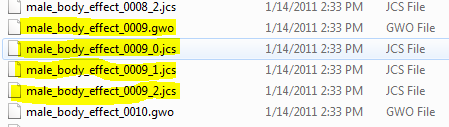
you'll find some .gwo and .jcs files in there.
the body_effect file is for the armor rank aura, and
the weapononehand_effect file is for weapon aura for priest and warriors and
the weapontwohand_effect file is for weapon aura for mages and champions.


but we will only edit the "body_effect" files for this tutorial is for ARMOR RANK aura only.
obviously female is for female characters.. if your character is a male then you have to find the male files.

4th: Editing the files (make sure you backup the "effect" folder first, so if you fucked up everything you still have the original copies. and if you will use the defaults you can just replace the edited folder with the original)

the number on the filename of the files represents the "armor rank". if it's 0003 it's armor rank: 3.. you must know your armor rank first LOL.

i will edit the armor rank 7 and make it as armor rank 9 aura. so here are the files i need.


then delete all the highlighted files on the screenshot (we will not need it anymore)
look for the files of the Armor Rank 9 aura..


copy it and paste it on your desktop or anywhere you like because we will rename it.
then rename the files change all the "0009" into "0007"
Note: you must be careful in editing, don't fuck it.

5th: Transferring the edited files into the GW folder.
Paste your edited files into the folder where you get that shits. make sure you don't get errors when you paste it, because if you do, man you're fucked up LMAO!!

6th: Restart / Start the client to see the if it works.. if doesn't well read this tutorial again LOL ha ha ha.

---------------- This is a sexy separate line ----------------

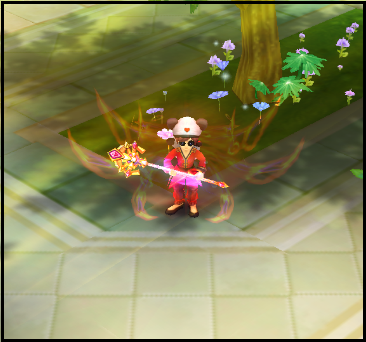
Tip: You can mix that shits for a change, just like this.


Saturday, February 22, 2014

Posted by Super Aykin | Saturday, February 22, 2014 | 11 comments
hey guys. today i will post a tutorial how to edit the appearance of our pets into the appearance of an 8th Rebirth pet. Ready? Ok lets do this.

Note: This will only work if you are using the GW Client.

Procedures:
Step 1: Navigate to this location C://Program Files/GodsWar Online_Facebook/Localization/en_us/Settings/Sys

Step 2: Find the file Pet.xml. make sure its the XML file because there are 2 files named "Pet"
Click the image for bigger display

Step 3: Rightclick the file then open it with NotePad
Click the image for bigger display

Step 4: Find you pet on the list. You can just find your pet easily. Then look for "Samsara"
Click the image for bigger display

Samsara="0" mean that pet with 7 or below rebirth. including 0 rebirth.
Samsara="8" mean that pet with 8 to 19 rebirths performed on the pet.
Samsara="20" means that 20 or more rebirths are performed on the pet.

The appearance of 8th to 19th rebirth is the same with the 20th or more rebirths.

Now change the Samsara="0" into Samsara="8"

Step 5: Dont forget to Save it. (Control + S) then restart your godswar client to see the result

Pet's appearance after 8th rebirth.. click here


Happy gaming :3


Thursday, February 6, 2014

Posted by Super Aykin | Thursday, February 06, 2014 | No comments
Hola :3 today i will share how to change the appearance of the avatars in GodsWar Online FB Version (IGG). Ok let's get this started :3 Ha Ha Ha!.

Requirements:

Computer - obviously LOL
GodsWar Client
A little understanding and a little part of your brain.

This is the classic look of GodsWar FB version


And this is the New Look


Pretty cool.. right?


So here's the Procedures

Step 1: Navigate to the GodsWar Folder
C:\Program Files\GodsWar Online_Facebook

Note: drive could be different depending on where drive you install your gw client


Step 2: Look for the file "config" and open it.


Step 3: Change the "Avatar=1" to "Avatar=2"


Don't forget to save it (Ctrl + S)


And then you're done :) Restart the client to take effect


Happy Gaming :3